You can install Xtreme HD IPTV on any Amazon Firestick or Fire TV in under 15 minutes by sideloading the IPTV Smarters Pro app through the free Downloader app, then entering the login details from your Xtreme HD IPTV subscription. No jailbreaking, rooting, or technical experience is required — you only need an active subscription and a stable internet connection.
This guide walks you through every step, from enabling unknown sources on your Firestick to fixing the most common setup errors, so you can go from unboxing to watching live TV in one sitting.
What You’ll Need Before You Start
Before you begin, make sure you have:
- An Amazon Firestick or Fire TV device (any generation, including Fire TV Stick Lite, 4K, and 4K Max)
- An active Xtreme HD IPTV subscription — if you don’t have one yet, you can compare plans and pricing here
- Your login credentials (server URL, username, and password), sent to you by email or WhatsApp after purchase
- A stable internet connection: minimum 10 Mbps for HD channels, 25+ Mbps recommended for 4K streams
- An Amazon account already signed in on your Firestick
Once you have all of the above ready, the whole setup takes about 10–15 minutes.
A quick note on connection speed: these numbers are per stream, not per household. If two people in the same home plan to watch different channels on different TVs at the same time, add the requirements together — for example, two simultaneous HD streams call for roughly 20 Mbps of available bandwidth, not 10.
Step 1: Enable Apps From Unknown Sources
Xtreme HD IPTV isn’t distributed through the Amazon App Store, so your Firestick needs permission to install apps from outside sources first.
- From the Firestick home screen, scroll right and select the Settings (gear) icon.
- Select My Fire TV (on some 2026 models this is labeled Device & Software).
- Select Developer Options.
- Turn ON the toggle for Apps from Unknown Sources (older devices may show this as Install Unknown Apps, listed per-app — you’ll enable it for Downloader in the next step).
Don’t worry — this setting doesn’t make your device unsafe. It simply allows you to install apps directly, the same way it works on an Android phone.
Step 2: Install the Downloader App
Downloader is a free, well-known app that lets your Firestick fetch and install apps directly from a web address.
- From the Firestick home screen, select the search (magnifying glass) icon.
- Type “Downloader” and select it from the results.
- Select Get (or Download) to install it — it’s free.
- Open the Downloader app once installation finishes.
- If prompted for permissions, select Allow.
Step 3: Install IPTV Smarters Pro (or TiviMate)
With Downloader open, you’ll now fetch your IPTV player app. IPTV Smarters Pro is the recommended choice for most users because it’s free, works with your Xtreme HD IPTV login directly, and includes a built-in program guide (EPG). TiviMate is a solid alternative if you prefer its interface, though its premium features require a separate purchase through its Companion app.
- In Downloader, select the URL field on the home screen.
- Enter the official IPTV Smarters Pro download link provided in your Xtreme HD IPTV welcome email (this ensures you get a clean, verified copy of the app).
- Select Go and wait for the download to finish.
- Select Install when prompted.
- Once installed, select Delete to remove the installation file (this frees up storage and is safe to do — it does not delete the app itself).
Step 4: Add Your Xtreme HD IPTV Subscription
Now it’s time to connect the app to your subscription.
- Open IPTV Smarters Pro from your Firestick’s app list.
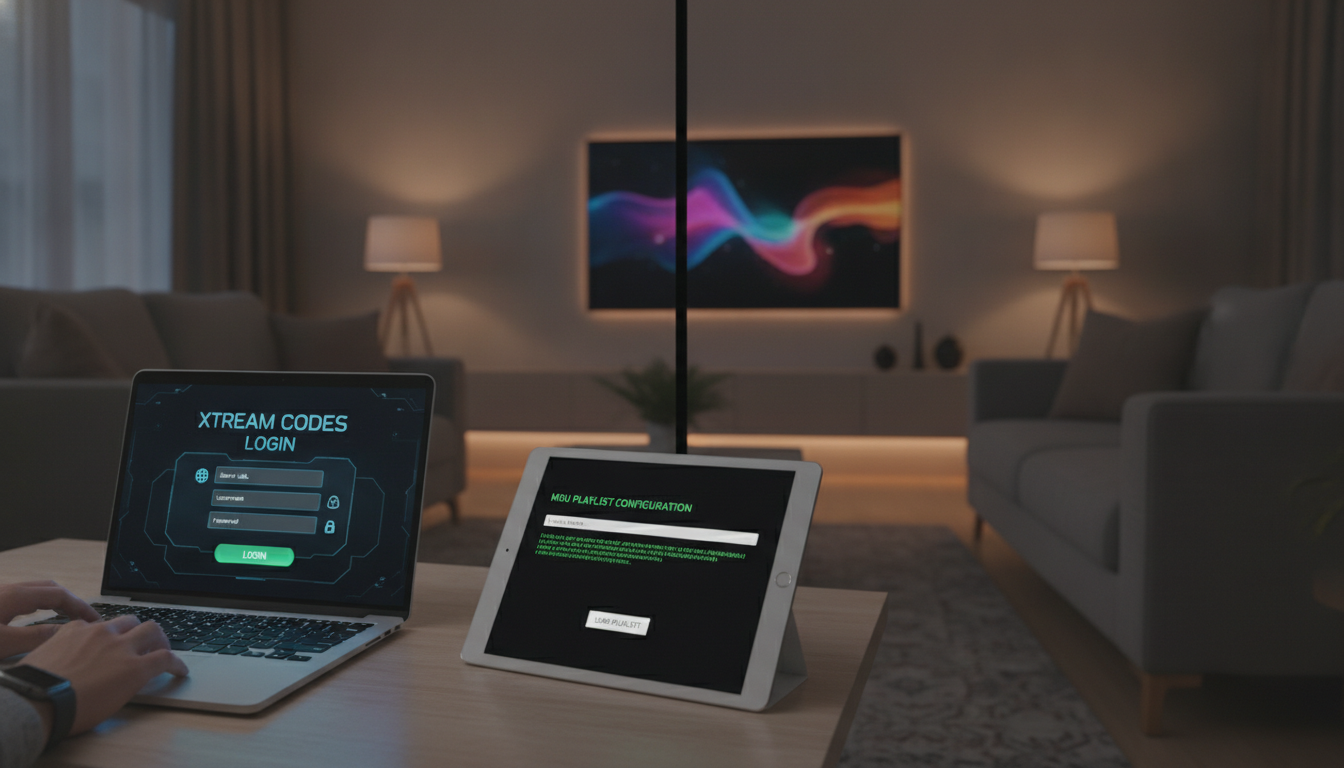
- Select Login with Xtream Codes API (this is the method Xtreme HD IPTV uses).
- Enter a name for the profile (anything you like, e.g., “Living Room TV”).
- Enter the Server URL / Portal URL, Username, and Password exactly as sent to you in your welcome email or WhatsApp message — these are case-sensitive, so double-check for typos.
- Select Add User (or Submit).
The app will connect to Xtreme HD IPTV’s servers and automatically load your channel list, video-on-demand library, and program guide. This usually takes 30 seconds to a few minutes on the first launch while the full guide data downloads.
Step 5: Start Watching
Once the sync finishes, you’ll land on the home screen with Live TV, Movies, Series, and TV Guide (EPG) available from the main menu. Browse by category, use the search icon to find a specific channel, or check the guide to see what’s currently airing. That’s it — you’re set up.
Common Installation Errors and How to Fix Them
Even with a correct setup, a few errors show up often enough that it’s worth knowing the fix in advance.
“Failed to Authorize” Error
This almost always points to an account issue, not a device problem. Before reinstalling anything, check three things: that your subscription hasn’t expired, that you haven’t exceeded your plan’s simultaneous-connection limit (see below), and that you typed the server URL, username, and password exactly as provided — a single extra space or wrong capital letter will trigger this error.
Black Screen on Some Channels
If the picture loads but the screen stays black on specific channels while others work fine, switch the app’s video player engine. In IPTV Smarters Pro, go to Settings → Player Engine and switch from ExoPlayer to VLC Player. This resolves the black-screen issue on the vast majority of affected channels immediately.
“Device Limit Exceeded” Error
Every plan allows a set number of simultaneous connections (check your plan details on the pricing page). This error usually doesn’t mean you’re actually watching on too many screens right now — it’s often caused by the app staying logged in and idle on a phone or tablet, silently holding a connection slot open. Fully close the app (not just minimize it) on any other device, then try again on your Firestick.
“Server Not Responding” Despite a Working Internet Connection
This is frequently a corrupted app cache rather than a real network problem. On your Firestick, go to Settings → Applications → Manage Installed Applications → IPTV Smarters Pro → Clear Cache, then reopen the app and log in again.
EPG (TV Guide) Not Loading or Showing the Wrong Time
Give it 3–5 minutes after your very first login — the full program guide needs time to download. If it’s still empty after that, go to Settings → EPG Settings inside the app and confirm Auto EPG is toggled on. If the guide loads but times look off by a few hours, adjust the Time Offset in the same settings menu to match your timezone.
“Playback Error” or “Unable to Play Stream” on a Specific Channel
This usually means a temporary hiccup on that one channel’s feed rather than a problem with your setup — try a different channel first to confirm the app itself is working. If it is, wait a few minutes and retry the same channel; live feeds occasionally drop for a short window during source switches. If the same channel consistently fails across multiple attempts, report it to support so our team can check and reroute that specific stream.
The App Freezes, Crashes, or Runs Slowly
This is almost always a Firestick storage or memory issue rather than an Xtreme HD IPTV problem, especially on older Firestick models (1st or 2nd generation) with limited RAM. Go to Settings → Applications → Manage Installed Applications, and uninstall any apps you no longer use — a Firestick running low on free storage will struggle to keep any streaming app responsive. Restarting the device (Settings → My Fire TV → Restart) also clears temporary memory and resolves most slowdowns.
If none of these fixes work after trying them, contact our support team with your username and a screenshot of the error — our team is available 24/7 by email, phone, or WhatsApp.
Keeping Your Setup Running Smoothly
A successful install is only half the story — a few habits keep your stream stable long after setup day:
- Update your player app periodically. IPTV Smarters Pro and TiviMate both push updates that fix bugs and improve stability. Reinstall through Downloader every few months using the same steps above to stay current, especially if your app suddenly stops working right after a Firestick software update.
- Use a wired connection where possible. A Fire TV Ethernet Adapter (sold separately) plugged into your router eliminates WiFi interference entirely and is the single biggest upgrade for reducing buffering during peak evening hours.
- Keep only one device logged in per stream you’re paying for. As noted above, an idle app left open on a phone can silently occupy a connection slot — get in the habit of fully closing the app, not just pressing home, when you’re done watching on another screen.
- Restart your Firestick and router monthly. This clears accumulated cache and temporary files on both ends of your connection and is a simple habit that prevents most of the slowdowns described in this guide before they start.
TiviMate vs IPTV Smarters Pro: Which Should You Use on Firestick?
Both apps work well with Xtreme HD IPTV, and the choice mostly comes down to preference:
| IPTV Smarters Pro | TiviMate | |
|---|---|---|
| Cost | Free | Free tier limited to 1 playlist; Premium is a separate purchase |
| Setup | Single app, login with Xtream Codes | Requires a separate Companion app for Premium activation on Firestick |
| Interface | Simple, beginner-friendly | More customizable, popular with power users |
| EPG (TV Guide) | Built-in, auto-loads | Built-in, highly customizable |
| Best for | First-time users, simplest setup | Users who want a more advanced, customizable guide layout |
If this is your first time setting up IPTV, we recommend starting with IPTV Smarters Pro — you can always switch to TiviMate later using the same login details.
Frequently Asked Questions
How long does it take to install Xtreme HD IPTV on Firestick?
The full setup — from enabling unknown sources to watching your first channel — typically takes 10 to 15 minutes for most users.
Do I need to jailbreak my Firestick to install Xtreme HD IPTV?
No. Jailbreaking is not required, not recommended, and not related to this setup. You’re simply enabling your Firestick to install an app from outside the Amazon App Store, which is a standard, safe, and fully reversible setting.
Can I install Xtreme HD IPTV on more than one Firestick?
Yes, as long as you stay within the number of simultaneous connections included in your plan. You can install the app on multiple devices, but only the allowed number can stream at the same time.
What if IPTV Smarters Pro shows a black screen or the video won’t play?
Switch the Player Engine from ExoPlayer to VLC Player in the app’s settings — see the troubleshooting section above for the exact steps.
Do I need a VPN to use Xtreme HD IPTV on Firestick?
A VPN is not required for the app or login process to work. Some users choose to use one for additional privacy, but it is not part of the standard setup.
What do I do if my login details don’t work?
Double-check your server URL, username, and password against the exact text in your welcome email or WhatsApp message — these fields are case-sensitive. If they still don’t work after confirming there are no typos, contact support and our team will verify your account.
Will installing Xtreme HD IPTV void my Firestick’s warranty?
No. Enabling Apps from Unknown Sources and sideloading an app through Downloader is a standard, Amazon-supported feature of every Firestick — it doesn’t modify the device’s firmware or affect your warranty in any way.
Can I use the same setup on a Fire TV Cube or a Fire TV (non-stick) model?
Yes. Every step in this guide applies to the full Fire TV lineup — Fire TV Stick, Fire TV Stick 4K/4K Max, Fire TV Cube, and built-in Fire TV Edition smart TVs — since they all run the same Fire OS and support Downloader and sideloaded apps the same way.
Next Steps
Once you’re set up, bookmark our full setup guide for other devices if you also want to install Xtreme HD IPTV on a Smart TV, Android box, or phone. If your subscription is nearing its end, you can renew here to avoid any interruption to your service.
Still stuck on a step? Our support team is available 24/7 — reach out here and we’ll help you get set up.