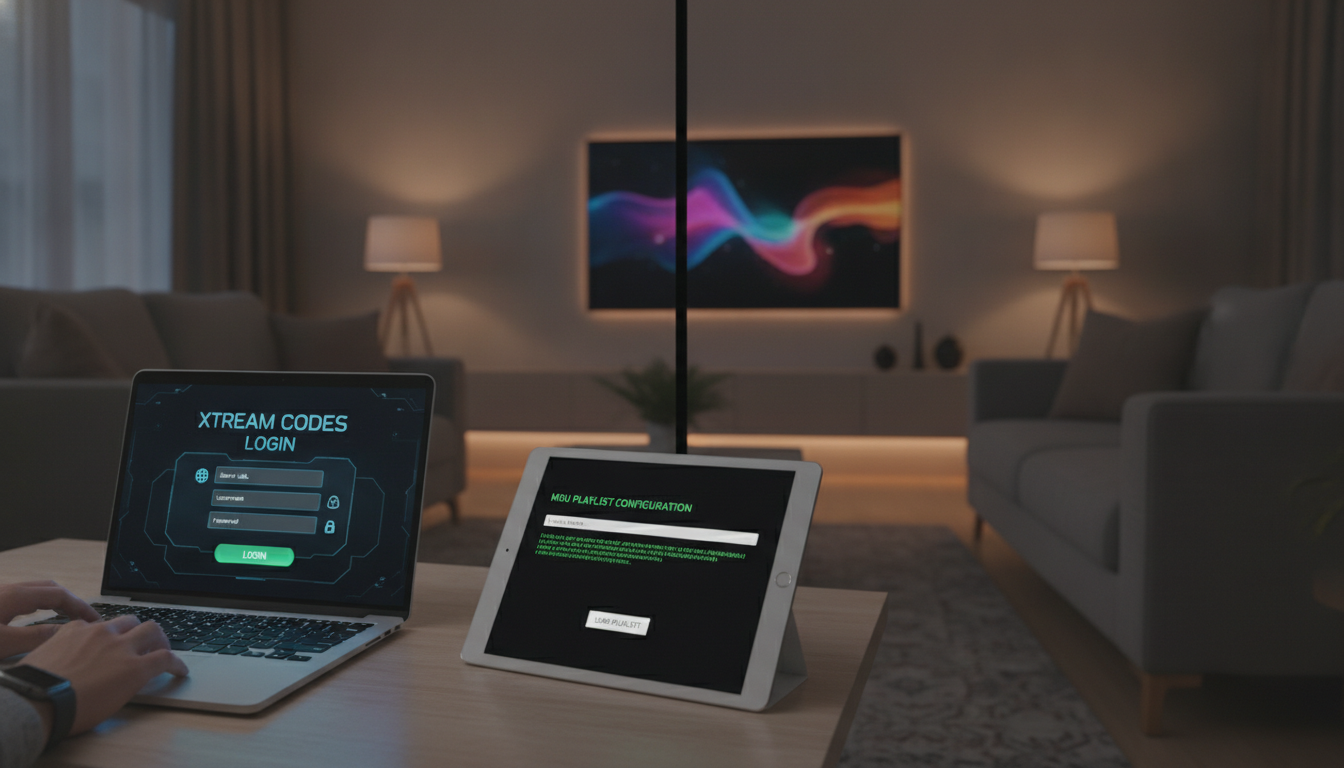
Setting up your favorite streaming service on a modern display is easier than you might think. We often receive questions about the best way to perform an IPTV installation on popular platforms. Using the MAC address method is a reliable and efficient way to get your service running smoothly.
This guide walks you through the entire process for your Samsung Smart TV or LG Smart TV. We will cover everything from securing your xtremehdiptv subscription to finding the unique device identifier needed for activation. You will also learn how to select a compatible player and verify your playback settings.
Our team designed this walkthrough to be a practical resource for any user. By following these steps, you can enjoy xtreme hd tv content with minimal effort. Let us help you configure your device so you can start watching your preferred programs right away.
What We Need Before Installing Xtreme HD TV
We can ensure a smooth installation by checking our equipment and subscription details ahead of time. Taking these preliminary steps helps us avoid common technical hurdles during the configuration process.
Confirming a Legitimate Xtreme HD TV Subscription
Before we start, we must verify that we have an active and legitimate IPTV subscription. Using a verified service ensures that our stream remains stable and provides access to the full library of content we expect.
Checking Samsung and LG Smart TV Compatibility
Most modern smart televisions support the necessary applications for streaming. We should confirm Samsung and LG compatibility by checking if our specific model allows us to download third-party media players from the official app store.
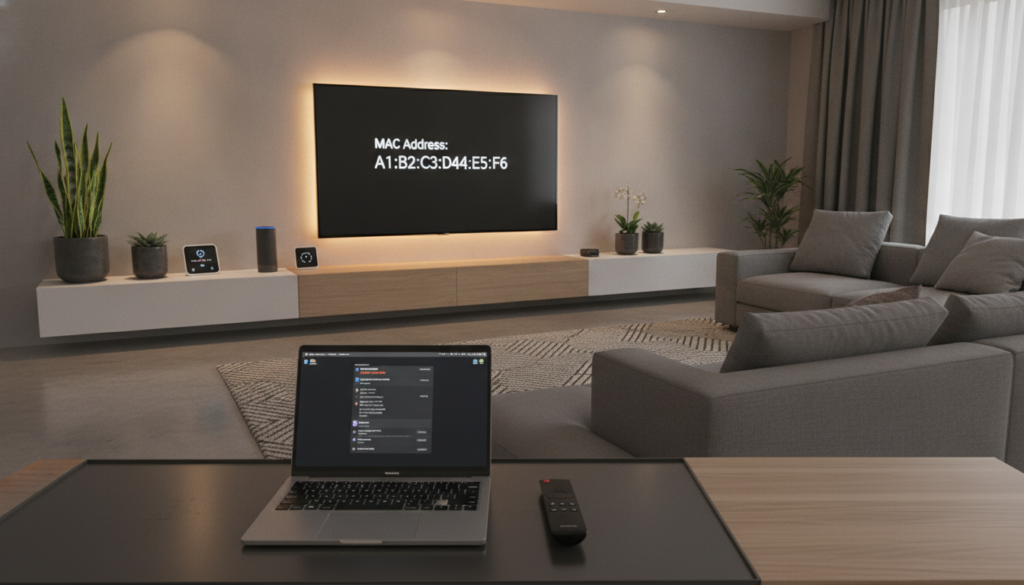
Finding the TV’s MAC Address and Device Details
The MAC address acts as a unique digital fingerprint for our television. We need this specific string of characters to link our device to the extreme hd iptv service provider.
Locating the MAC Address on a Samsung Smart TV
To find this on a Samsung device, we navigate to the Settings menu. From there, we select Support, then About This TV, where the network information displays the required address.
Locating the MAC Address on an LG Smart TV
On an LG television, we go to the All Settings menu. We then select General, followed by Network, and finally Wi-Fi Connection or Wired Connection to view the advanced settings and the unique device identifier.
Preparing a Stable Internet Connection
High-quality streaming requires a consistent and fast internet connection. We recommend using a wired Ethernet cable whenever possible to prevent buffering while watching our favorite xtreme hd tv content.
Understanding the Difference Between a MAC Address and IPTV Login
It is important to distinguish between the two types of credentials we might encounter. The TV MAC address is a hardware identifier used to register our specific television with the service provider.
In contrast, an IPTV login usually refers to a username and password combination used for account authentication. We should keep both pieces of information secure to maintain the integrity of our extreme hd iptv setup.
How the MAC Address Method Works for IPTV Apps
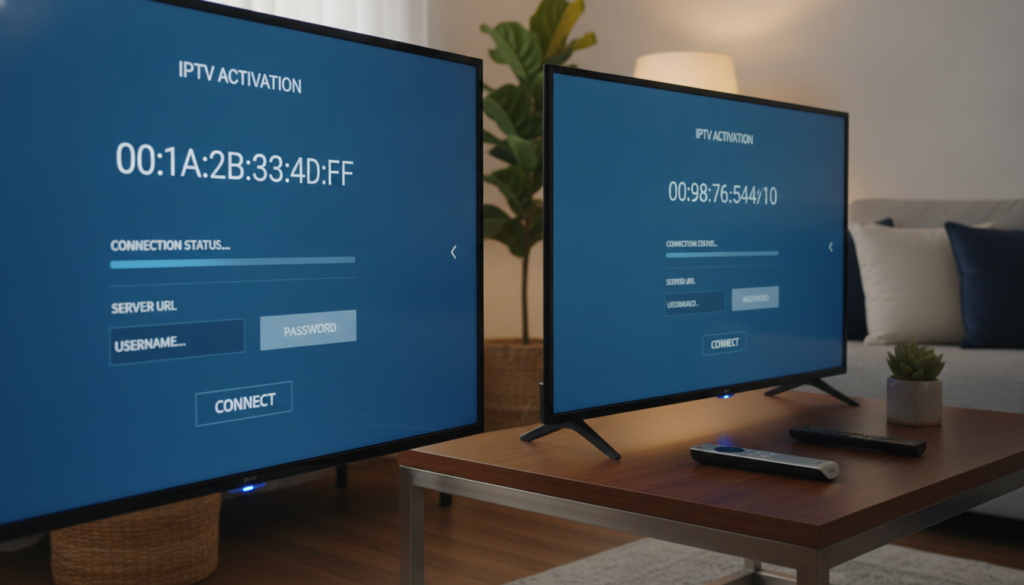
Setting up xtreme hd requires a clear understanding of how the MAC address acts as a digital bridge between our hardware and the streaming server. This MAC-based IPTV activation process ensures that our specific television is authorized to receive the broadcast stream directly from the provider.
What the MAC Address Links to the IPTV Application
The MAC address serves as a unique hardware identifier for our smart TV. When we provide this string of characters to our service provider, they map our specific subscription profile to that exact device.
This link allows the server to recognize our TV whenever it requests data. It ensures that only our authorized device can access the content associated with our account.
Why We Use a Compatible Player Instead of Installing a Traditional Channel App
We rely on a compatible IPTV player because it acts as a universal gateway for streaming services. Unlike a standard channel app that is locked to a specific network, these players are designed to interpret the data streams provided by xtreme iptv services.
By using a dedicated player, we gain better control over our viewing experience. These applications are built to handle the specific protocols required for high-definition streaming on modern smart TVs.
Information We Should Have Ready Before Activation
Before we begin the configuration, we must gather specific details to ensure a successful connection. Having this data organized prevents delays during the setup process.
MAC Address
This is the unique physical address of our network interface. We can usually find it within the network settings of our TV or displayed directly on the screen of our chosen player.
Device Key or Activation Code
The activation code is a temporary security token provided by our service. It verifies that we have a legitimate right to link our device to the streaming platform.
Subscription Expiration Date
We should always keep track of our subscription expiration date to avoid unexpected service interruptions. Knowing when our plan ends helps us manage renewals effectively without losing access to our favorite content.
Privacy and Security Precautions for IPTV Setup
Protecting our personal information is vital when configuring any streaming service. We should only share our device details with authorized support channels to prevent unauthorized access to our account.
Furthermore, we must ensure that our compatible IPTV player is downloaded from official app stores. Avoiding unofficial sources keeps our television secure from potential malware or data tracking risks.
How to Install an IPTV Player on a Samsung Smart TV
To begin our journey with xtremehd, we must first prepare our Samsung Smart TV by installing the right software. Choosing the correct application is vital for a smooth streaming experience and ensures that our device communicates properly with the service provider.
Step 1: Open the Samsung Smart TV App Store
We start by navigating to the home screen of our television using the remote control. From there, we locate and select the Samsung App Store icon to browse available software.
Step 2: Search for a Compatible IPTV Player
Once inside the store, we use the search function to look for a reliable Samsung Smart TV IPTV player. It is important to be selective during this process to avoid installing unnecessary or low-quality software.
Checking App Names, Ratings, and Developer Details
Before we commit to a download, we examine the app details carefully. We look for high user ratings and verify that the developer is reputable to ensure our data remains secure.
Choosing an App That Supports MAC-Based Activation
We must ensure the chosen software is a true MAC-compatible application. This specific feature is necessary for the subsequent IPTV activation process required by our service.
Step 3: Download and Launch the IPTV Player
After confirming the app meets our requirements, we select the install button. Once the download finishes, we launch the application directly from our apps list to begin the configuration.
Step 4: Record the MAC Address Displayed by the App
Upon opening the player, we look for the device information screen. We carefully record the MAC address shown, as this unique identifier is essential for linking our xtremehd iptv subscription to the television.
Step 5: Allow the App to Finish Its Initial Setup
Finally, we allow the application to complete its internal setup process. This ensures that all necessary files are ready before we proceed to the final connection steps.
How to Install an IPTV Player on an LG Smart TV
To enjoy xtreme hd tv iptv on our LG television, we must first navigate the built-in application store. This process ensures that our device is properly configured to handle high-quality streaming content without unnecessary complications.
Step 1: Open the LG Content Store
We begin by pressing the Home button on our LG remote control. From the main dashboard, we navigate to the LG Content Store icon and select it to browse available applications.
Step 2: Search for a MAC-Compatible IPTV Application
Once inside the store, we use the search function to find a reliable player. We look for apps that support xtreme tv iptv services through a unique hardware identifier.
Verifying WebOS Compatibility
It is important to check that the application is compatible with our specific version of WebOS. Most modern LG TVs run on updated software, but we should confirm the app listing mentions support for our current operating system.
Reviewing the App’s Activation Requirements
Before downloading, we read the app description to understand its specific activation needs. Some players require a subscription key, while others rely entirely on the device’s unique hardware ID for service linking.
Step 3: Install and Open the IPTV Player
After selecting the appropriate LG Smart TV IPTV player, we click the Install button. Once the download finishes, we launch the application directly from the store or our home screen.
Step 4: Find and Copy the MAC Address Shown on Screen
Upon opening the app, we look for the device information section. The screen will display a unique identifier, which is essential for the MAC activation process. We carefully record this string of characters to ensure our service links correctly.
Step 5: Keep the IPTV App Open During Activation
We must leave the application running on our television screen while we complete the registration on our provider’s website. Keeping the app active ensures that the server can communicate with our device and finalize the setup without errors.
How We Connect Xtreme HD TV Using the MAC Address
The final stage of our setup involves registering our device with the service provider to unlock our media library. By linking our television to the streaming service, we ensure that our account is correctly synced for a seamless viewing experience.
Step 1: Open the IPTV Provider’s Authorized Activation Page
To begin, we must navigate to the official website provided by our service subscription. This is the only secure way to perform an authorized IPTV activation for our smart TV.
Step 2: Enter the Samsung or LG MAC Address Carefully
We need to input the unique MAC address we recorded earlier from our IPTV application. It is vital to double-check every character, as even a minor typo will prevent the extreme iptv service from recognizing our specific device.
Step 3: Add the Authorized Xtreme HD TV Playlist or Service Details
Once the device is identified, we must provide the necessary credentials to pull our content. Depending on our subscription type, we will use one of the following methods to configure our xtreme uhd iptv service.
Entering an M3U Playlist URL When Supported
If our provider uses a direct link, we will paste the M3U playlist URL into the designated field on the activation page. This link acts as a direct map for our player to locate all available channels and categories.
Entering Xtream Codes API Details When Required
Many modern services prefer the Xtream Codes API for a more stable connection. We will enter our username, password, and the server URL provided by our support team to ensure the best performance.
Choosing the Correct Playlist or Account Profile
After entering our credentials, we may need to select a specific IPTV playlist profile if our subscription includes multiple regions or content tiers. We must ensure we select the profile that matches our desired language and regional preferences.
Step 4: Submit the Device for Activation
After verifying all information, we click the submit or activate button on the web page. This action officially links our television to the extreme iptv account, allowing the server to push the content list to our app.
Step 5: Restart the IPTV Player on the Smart TV
For the changes to take effect, we must perform a full restart of the application on our Samsung or LG TV. We should close the app completely and reopen it to force a fresh sync with the server.
Step 6: Wait for Channels, Movies, and Series to Load
Upon relaunching, the player will automatically fetch our data. We should allow a few moments for the xtreme uhd iptv interface to populate with our full list of channels, movies, and series. Once the loading bar finishes, our setup is complete and ready for use.
How to Verify the Xtreme HD TV Setup
We should now take a moment to ensure that every feature of our new service is operating at peak performance. Proper verification guarantees that our investment provides the high-quality entertainment experience we expect from a premium streaming provider.
Checking the Live TV Channel List
First, we need to open the application and browse through the available categories. We should confirm that our subscription package correctly displays all expected live TV channels without any missing groups or broken links.
Testing HD and UHD IPTV Playback
Next, we will select a few high-definition streams to evaluate the visual clarity. Testing UHD IPTV playback is essential to ensure our smart TV hardware and internet connection can handle high-bitrate content smoothly.
Opening the Electronic Program Guide
The electronic program guide is a critical tool for navigating our daily schedule. We must verify that the guide loads quickly and displays accurate information for the current and upcoming shows.
Testing Movies, Series, Subtitles, and Audio Tracks
We should also explore the Video on Demand section to check our favorite movies and series. During playback, we will toggle the IPTV subtitles and switch between available audio tracks to ensure these features function as intended.
Confirming That the Correct Time Zone and Regional Content Are Displayed
It is important to verify that the service reflects our local time zone correctly. This ensures that the program listings align with our actual schedule and that we receive the appropriate regional content for our area.
Testing Playback During Peak Internet Usage
Finally, we recommend testing the stream during busy evening hours when network traffic is high. This stress test helps us determine if our Xtreme TV connection remains stable or if we need to adjust our network settings for better reliability.
Samsung and LG IPTV Settings for Smoother Streaming
We can significantly improve our viewing experience by optimizing how our smart TVs handle streaming data. When we use extremehd iptv, the goal is to minimize latency and ensure a consistent data flow for high-quality playback.
Adjusting Picture Settings Without Creating Unnecessary Processing Delay
Modern televisions often apply heavy image processing to enhance standard broadcasts. Unfortunately, these features can introduce input lag that interferes with smooth hdiptv performance.
We recommend switching your TV to “Game Mode” or “PC Mode” while watching content. These modes bypass unnecessary post-processing, which helps maintain a direct and responsive stream.
Using a Wired Ethernet Connection When Wi-Fi Is Unstable
A wired Ethernet connection remains the gold standard for reliable streaming. By plugging an Ethernet cable directly into your TV, you eliminate the interference common with wireless signals.
This physical link provides a stable path for data, which is crucial for high-definition content. If your router is located near your entertainment center, we strongly suggest choosing this method over wireless options.
Improving Wi-Fi Performance on Samsung and LG Smart TVs
If a wired connection is not possible, we must optimize our wireless environment to ensure smoother streaming. Small adjustments to your home network can lead to major improvements in video stability.
Moving the Router Closer to the Television
Physical obstacles like walls and furniture can weaken your signal significantly. We find that placing the router in the same room as the TV provides the strongest possible connection.
Using the 5 GHz Network When Supported
Most modern routers offer both 2.4 GHz and 5 GHz bands. We should always connect our devices to the 5 GHz Wi-Fi network, as it offers faster speeds and less interference from other household electronics.
Reducing Network Congestion From Other Devices
Too many devices competing for bandwidth can cause buffering issues. We suggest disconnecting unused tablets or smartphones from the network while we are watching our favorite shows.
Managing Buffer Size, Video Quality, and Playback Options
Many IPTV players allow us to customize internal settings to match our internet speed. If you experience frequent interruptions, try lowering the video quality slightly within the app menu.
Adjusting the buffer size can also help the player store more data ahead of time. This creates a safety net that prevents the stream from stopping during minor network fluctuations.
Keeping the IPTV Player and TV Firmware Updated
Software updates often contain critical patches that improve network compatibility and app performance. We should regularly check for firmware updates in the settings menu of our Samsung or LG devices.
- Check for TV system updates monthly.
- Ensure the IPTV application is running the latest version.
- Clear the app cache periodically to maintain speed.
- Restart the TV after major updates to apply changes.
Fixes for Common MAC Address Activation Problems
Even with a perfect setup, we sometimes encounter technical hurdles when using xtremeiptv on our smart TVs. Resolving activation and playback errors ensures that we get the most out of our xtreme hd iptv: subscription.
When the MAC Address Is Rejected
Removing Extra Spaces and Incorrect Characters
A common cause for errors is a simple typo during the entry process. We must ensure there are no leading or trailing spaces when we type the code into the activation portal.
Checking Whether the App Shows a Different MAC Address
Sometimes, the MAC address displayed on the TV screen differs from the one on the device sticker. We should always use the address provided directly by the IPTV application interface.
When Channels Do Not Appear After Activation
Refreshing the Playlist
If our channel list is empty, a simple playlist refresh often forces the application to pull the latest data from the server. This action usually resolves synchronization delays.
Closing and Reopening the IPTV Player
Completely exiting the application and restarting it can clear temporary cache files. This step helps the software recognize the newly activated service.
Confirming That the Subscription Is Active
We should verify that our account status is current and not expired. Contacting our provider ensures that the service is properly linked to our specific device.
When Xtreme IPTV Buffers or Freezes
Testing Internet Speed on the Samsung or LG TV
IPTV buffering often stems from insufficient bandwidth reaching the television. We can run a speed test through the TV browser to confirm our connection meets the requirements for high-definition streaming.
Restarting the Router and Smart TV
Power cycling our networking equipment clears out memory leaks and connection errors. We recommend unplugging the router and the TV for thirty seconds before turning them back on.
Reducing Streaming Quality Temporarily
If our internet speed is unstable, we can manually lower the video quality in the player settings. This adjustment helps maintain a steady stream without constant interruptions.
When the IPTV App Crashes or Closes
If we experience frequent IPTV app crashes, we should check for available firmware updates for our television. Reinstalling the application can also resolve corrupted files that cause unexpected shutdowns.
When the Service Works on One TV but Not the Other
Each device requires its own unique activation process and MAC address registration. We must ensure that we have not exceeded our subscription limit for simultaneous connections on multiple screens.
How to Protect and Maintain Our IPTV Setup
Once your service is active, keeping your connection secure and organized is essential for long-term enjoyment. Proper maintenance ensures that your streaming experience remains stable while protecting your personal data from potential threats.
Keeping the MAC Address Private
Your device identifier acts as a digital fingerprint for your streaming service. We must keep this private MAC address confidential to prevent unauthorized users from hijacking our connection. Never share this string of characters on public forums or with unverified third-party services.
Using Only Authorized Xtreme HD IPTV Support Channels
When we encounter technical difficulties, we should rely exclusively on authorized Xtreme HD IPTV support. Official channels provide secure guidance and verified solutions for our specific hardware. Using unofficial sources often leads to malware risks or compromised account credentials.
Recognizing Suspicious Activation Requests and Unofficial Downloads
Maintaining high standards for IPTV security requires vigilance against phishing attempts. We should avoid downloading applications from unknown websites that promise free access or “cracked” versions of our service. Stick to official app stores on your Samsung or LG television to ensure the software is safe.
Managing Multiple Samsung and LG Smart TVs
Many households operate more than one smart television, which requires careful planning. We recommend the following practices to keep our extreme hd setup organized:
- Label each device clearly with its unique identifier.
- Check the service terms regarding simultaneous stream limits.
- Ensure each TV runs the latest firmware for better compatibility.
- Use separate profiles if the provider supports multi-device management.
Removing an Old Device Before Reusing the Subscription
If we decide to upgrade our hardware, we must properly manage our xtreme hdiptv subscription. Always remove the old device from your account dashboard before attempting to log in on a new television. This prevents “device limit reached” errors and keeps our playlist access clean.
Renewing the Service Without Losing Playlist Access
When the time comes for an IPTV subscription renewal, we should follow the official portal instructions carefully. Timely payments ensure that our channel lists and favorites remain intact without requiring a full re-installation. Keeping our account details updated helps us avoid service interruptions during the transition.
Conclusion
Setting up xtreme hd tv on your home entertainment system provides a gateway to high-quality digital content. By following the steps for a proper MAC address IPTV setup, we ensure that our viewing experience remains consistent and reliable.
Successful IPTV player installation requires attention to detail during the initial configuration phase. Whether we use a Samsung Smart TV or an LG Smart TV, verifying our device credentials and maintaining a stable network connection remains vital for smooth playback.
We encourage proactive management of our streaming accounts to keep our services secure. Regular updates to our hardware and software help us avoid common technical hurdles while maximizing the potential of our chosen service. We now possess the knowledge to enjoy our favorite programs with confidence and ease.